Officially authorised by Companies House — ACSP|100% legal formation|Why Eteform →|Verify authorisation →

Companies House · Personal Code · Arab founders

Get your Companies House Personal Code — clear steps for non-UK founders

Directors and PSCs must prove identity to Companies House. You get an 11-character Personal Code. Outside the UK: use Authenticator (not UK SMS), then the One Login app for passport and face — then send the code to Eteform.

In one line: Prove identity on GOV.UK → get Personal Code → send it to Eteform. Outside the UK always prefer Authenticator app over UK SMS.

Watch the practical walkthrough + follow the written steps

The video shows the real screens end-to-end. Below it: the same journey written for Arab / non-UK founders — including Authenticator instead of UK SMS.

  1. Step 1 — Account

    Install GOV.UK One Login when needed. Create One Login with an email only you use. Confirm the 6-digit email code, then set a password.

  2. Step 2 — Security

    When asked how to get security codes: if you are outside the UK choose Authenticator app (not UK text message). Link Google Authenticator with the on-screen QR.

  3. Step 3 — Start verify

    On a computer open Verify your identity, sign in, and choose to prove identity with your phone (best for passport).

  4. Step 4 — Passport + face

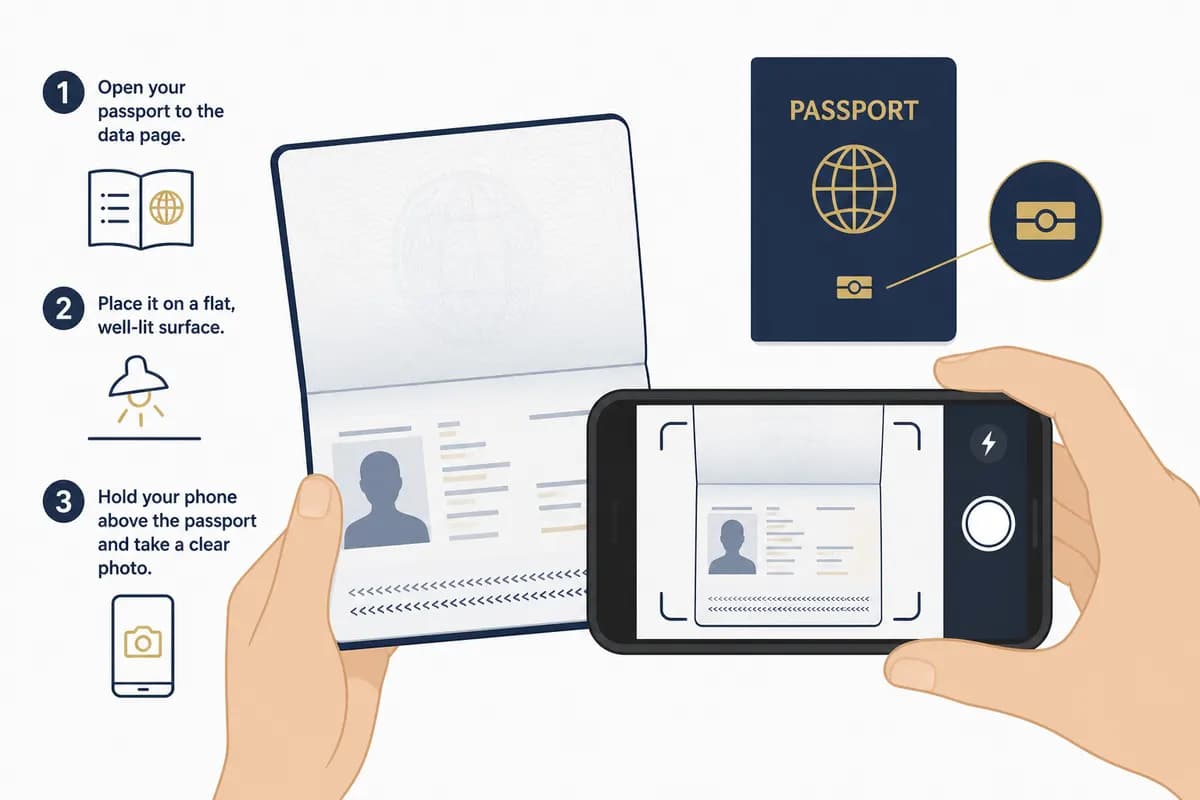
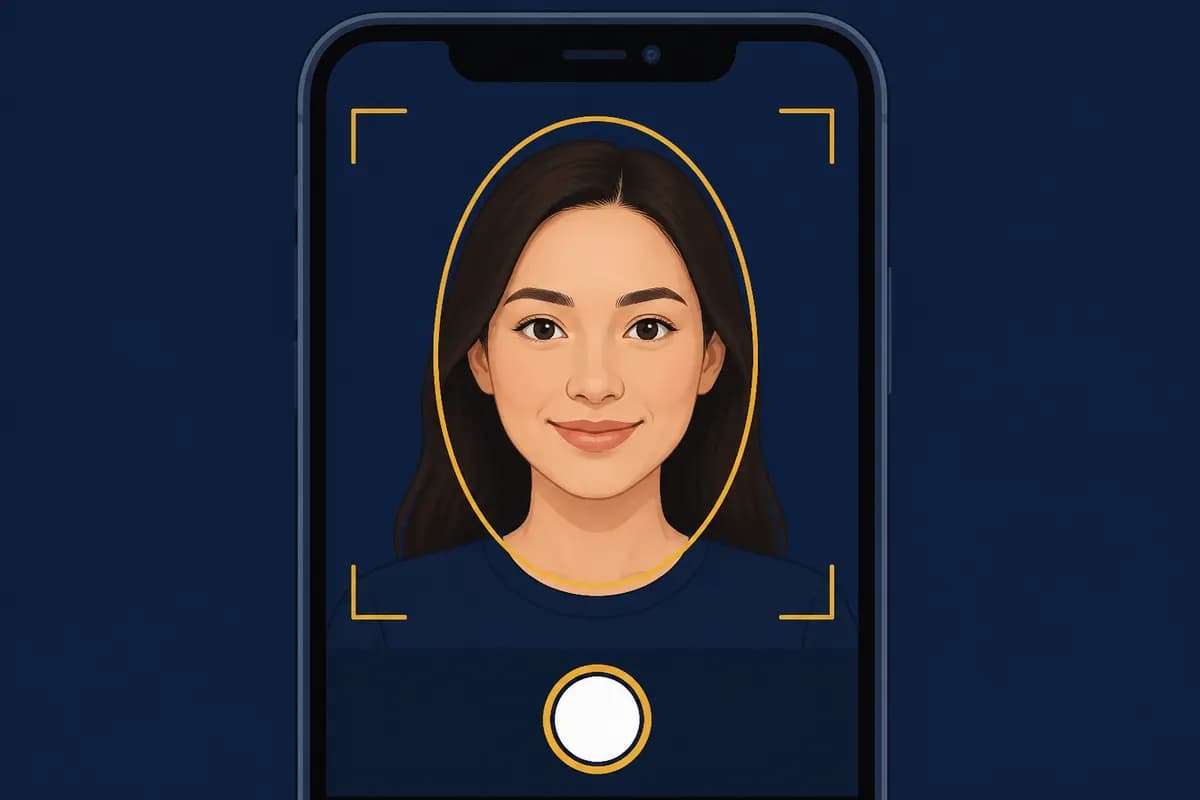
    Open the biometric passport photo page in the white frame → close passport and scan the chip with the phone touching it → face scan in the oval.

  5. Step 5 — Finish + code

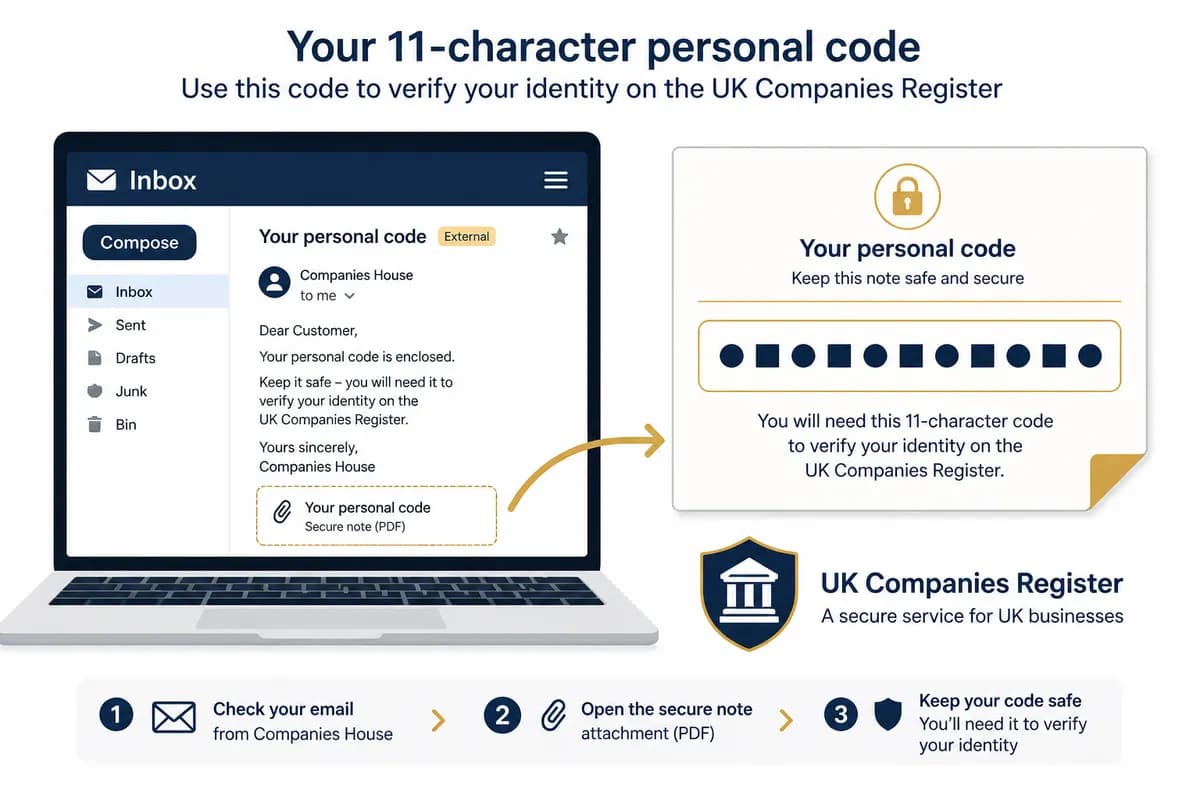
    Return to the computer tab, enter home address if asked, copy the Personal Code (three blocks), save it, and send it to Eteform.

Why this code matters

Companies House introduced identity verification to reduce fraud. After you verify, you receive a Personal Code linked to you, not to the company name. Your agent (Eteform) needs it to file on your behalf — Confirmation Statement and other identity-gated filings.

Official detail: Companies House personal codes. Do it before your next filing deadline — earlier is safer.

Illustration of a Companies House Personal Code

Critical if you are outside the UK

At security-code setup GOV.UK offers UK SMS or Authenticator. Official guidance: most Eteform clients should pick Authenticator.

Text message (UK number) — avoid

Needs a working +44 mobile. Not for Egypt, Gulf, or most non-UK founders.

Authenticator app — recommended

Install Google Authenticator → + → Scan a QR code → enter the 6 digits on GOV.UK. Keep the app forever for future logins.

GOV.UK One Login app — passport, chip, face

Different from Authenticator. Official guide: proving identity with the One Login app. Android 10+ · iPhone 8+ / iOS 16.7+. Start from the website — open the app when asked.

  1. Biometric passport (chip symbol on the cover) works best for most non-UK clients.
  2. Photo page inside the white frame until it scans — hold steady.
  3. Close passport face-up; phone flat on the NFC/chip area until tick / photo preview.
  4. Face in the oval: good light, look ahead, stay still.
  5. Return to the open computer browser → Continue → address → Personal Code.
Scanning a biometric passport
Face scan in the One Login app

Send the Personal Code to Eteform

  • Find it again later: Companies House sign-in → Manage account (often emailed after 8 July 2026 too).
  • Paste it on the partners step of /order, upload a screenshot in order documents, or WhatsApp with full name / order number.
  • Or skip self-verify: upload passport + selfie and let Eteform complete identity checks as an ACSP.

FAQ

What is a Personal Code?

An 11-character code (often shown in three blocks) issued after you prove your identity to Companies House. It belongs to you as a director or PSC — not the company. Without it, filings that need a verified identity (e.g. Confirmation Statement) can be blocked.

I live outside the UK — Text message or Authenticator?

Choose Authenticator app and install Google Authenticator. Text message needs a UK (+44) mobile number and is unsuitable for most Eteform clients. Scan the QR inside Authenticator, not with the normal camera app.

Why are there two apps?

Google Authenticator = login security codes only. GOV.UK One Login app = passport photo, chip scan, and face. Both are used in the full journey — do not mix them up.

How should I choose my email?

Use a personal email only you control. Each director/PSC needs their own email and code. If you direct several UK companies, keep the same email for the same person.

What do I do after I get the code?

Save it under Companies House → Manage account, then paste it on the Eteform partners step, upload a screenshot, or WhatsApp it with your name and order number.

Must I self-verify with Eteform?

No. Two paths: (1) verify yourself on GOV.UK and send the Personal Code, or (2) complete checks with us as an ACSP after passport + selfie. Pick what fits your documents and timeline.

More in FAQ.